How to Manually Control Exposure Time Using the Basler pylon SDK (C# / .NET 8)
Have you ever felt that your industrial camera images look too dark, too bright, or fluctuate unexpectedly?
Automatic exposure (auto-exposure) can be useful, but in many machine-vision or inspection systems, consistent lighting is essential, and automatic adjustments can cause instability.
With the Basler pylon SDK, you can switch exposure control to manual mode and specify an exact exposure time (in microseconds), enabling stable and predictable imaging.
This article explains how to set, read, and validate exposure time manually using C# and the pylon SDK.
✔ Environment
| Item | Details |
|---|---|
| Camera | Basler acA2500-14gm |
| SDK | Basler pylon Camera Software Suite |
| Lang | C# / .NET 8.0 (Windows) |
💡 Background: GenICam and Camera Parameters
Parameters such as ExposureTimeAbs used in this article follow GenICam (Generic Interface for Cameras) — an industry standard used by Basler, FLIR, IDS, JAI, and many other industrial camera manufacturers.
With GenICam SFNC (Standard Features Naming Convention), you can access:
- Exposure
- Gain
- ROI / image size
- Trigger settings
- Acquisition modes
all using a common parameter model.
👉 GenICam SFNC specification:
https://www.emva.org/standards-technology/genicam/
This article focuses on practical usage, but knowing that pylon follows GenICam helps when switching between camera brands.
🔧 Setting Exposure Time Manually
Below is an extension to the BaslerCameraSample class from the previous article.
Method: Set Exposure Time (manual mode)
|
1 2 3 4 5 6 7 8 9 10 11 12 13 14 |
// Set exposure time manually (unit: microseconds) public bool SetExposure(double exposureTimeUs) { // Disable auto exposure (switch to manual) if (!SetExposureMode(PLCamera.ExposureAuto.Off)) return false; // Set exposure time (e.g., 5000 µs = 5 ms) if (!SetPLCameraParamter(PLCamera.ExposureTimeAbs, exposureTimeUs)) return false; Console.WriteLine($“Exposure time set to {exposureTimeUs} μs.”); return true; } |
Helper Functions
Set auto-exposure mode (Off / Once / Continuous)
|
1 2 |
public bool SetExposureMode(string mode) => SetPLCameraParamter(PLCamera.ExposureAuto, mode); |
Set an enum parameter
|
1 2 3 4 5 6 7 8 9 10 11 12 13 14 |
public bool SetPLCameraParamter(ParameterListEnum parameter, string value) { if (Camera == null || !IsConnected) return false; if (Camera.Parameters[parameter].IsWritable) { Camera.Parameters[parameter].SetValue(value); Console.WriteLine($“{parameter} set to {value}.”); return true; } Console.WriteLine($“{parameter} is not writable.”); return false; } |
Set a floating-point parameter (e.g., ExposureTimeAbs)
|
1 2 3 4 5 6 7 8 9 10 11 12 13 14 |
public bool SetPLCameraParamter(FloatName parameter, double value) { if (Camera == null || !IsConnected) return false; if (Camera.Parameters[parameter].IsWritable) { Camera.Parameters[parameter].SetValue(value); Console.WriteLine($“{parameter} set to {value}.”); return true; } Console.WriteLine($“{parameter} is not writable.”); return false; } |
🔍 Reading the Current Exposure Time
Use GetValue() to read exposure parameters from the camera.
|
1 2 3 4 5 6 7 8 9 10 11 12 13 14 15 16 17 |
// Read exposure time in microseconds public double GetExposureTime() => GetPLCameraParamter(PLCamera.ExposureTimeAbs); public double GetPLCameraParamter(FloatName parameter) { if (Camera == null || !IsConnected) throw new InvalidOperationException(“Camera is not connected.”); if (Camera.Parameters[parameter].IsReadable) { double value = Camera.Parameters[parameter].GetValue(); Console.WriteLine($“{parameter} value: {value}”); return value; } throw new InvalidOperationException($“{parameter} is not readable.”); } |
💡 About ExposureAuto Modes
| Value | Behavior |
|---|---|
| Off | Manual exposure (used in this article) |
| Once | Adjusts exposure once, then fixes it |
| Continuous | Continuously adjusts to maintain brightness |
📷 Example: Change Exposure and Capture Images
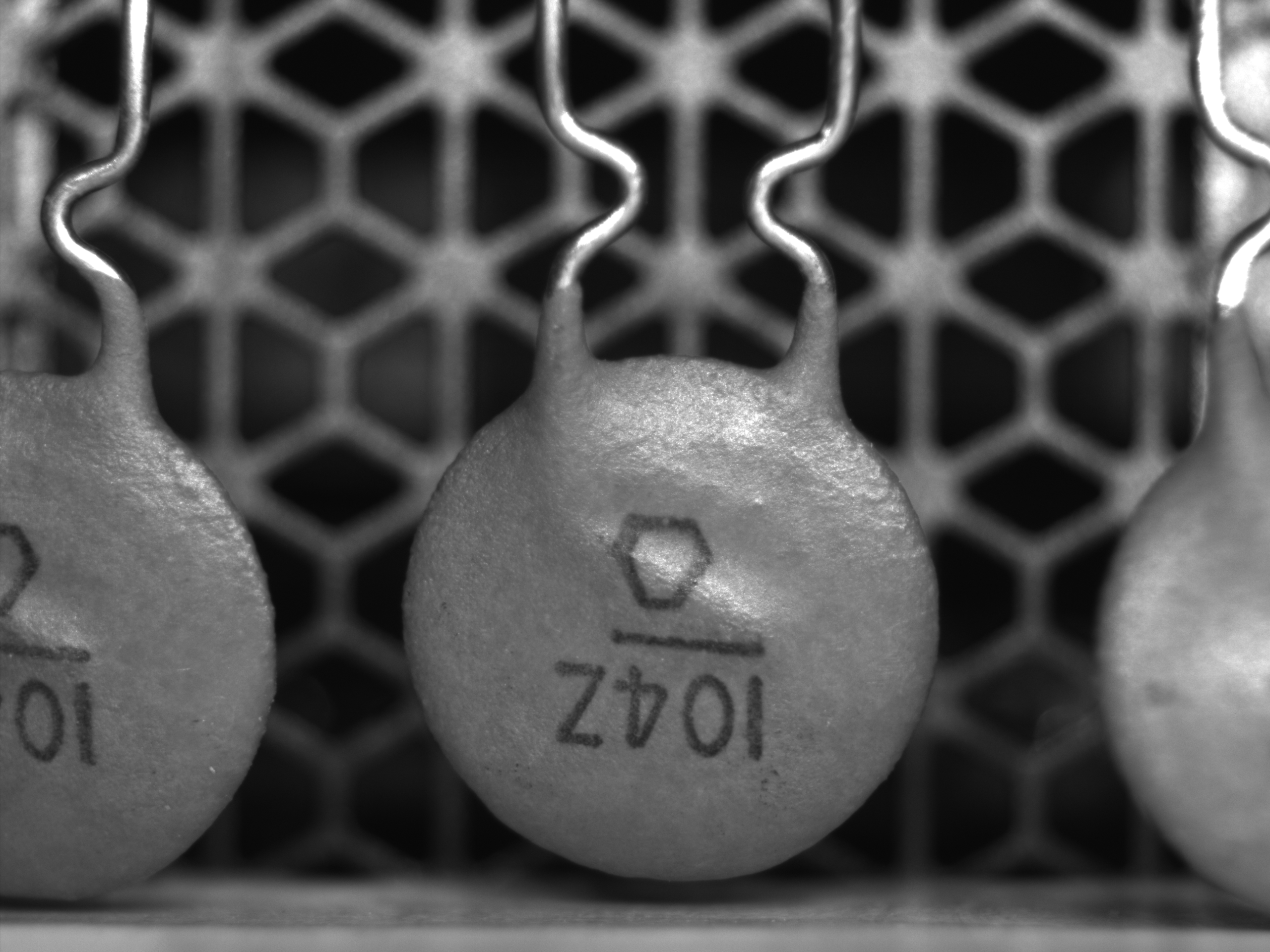
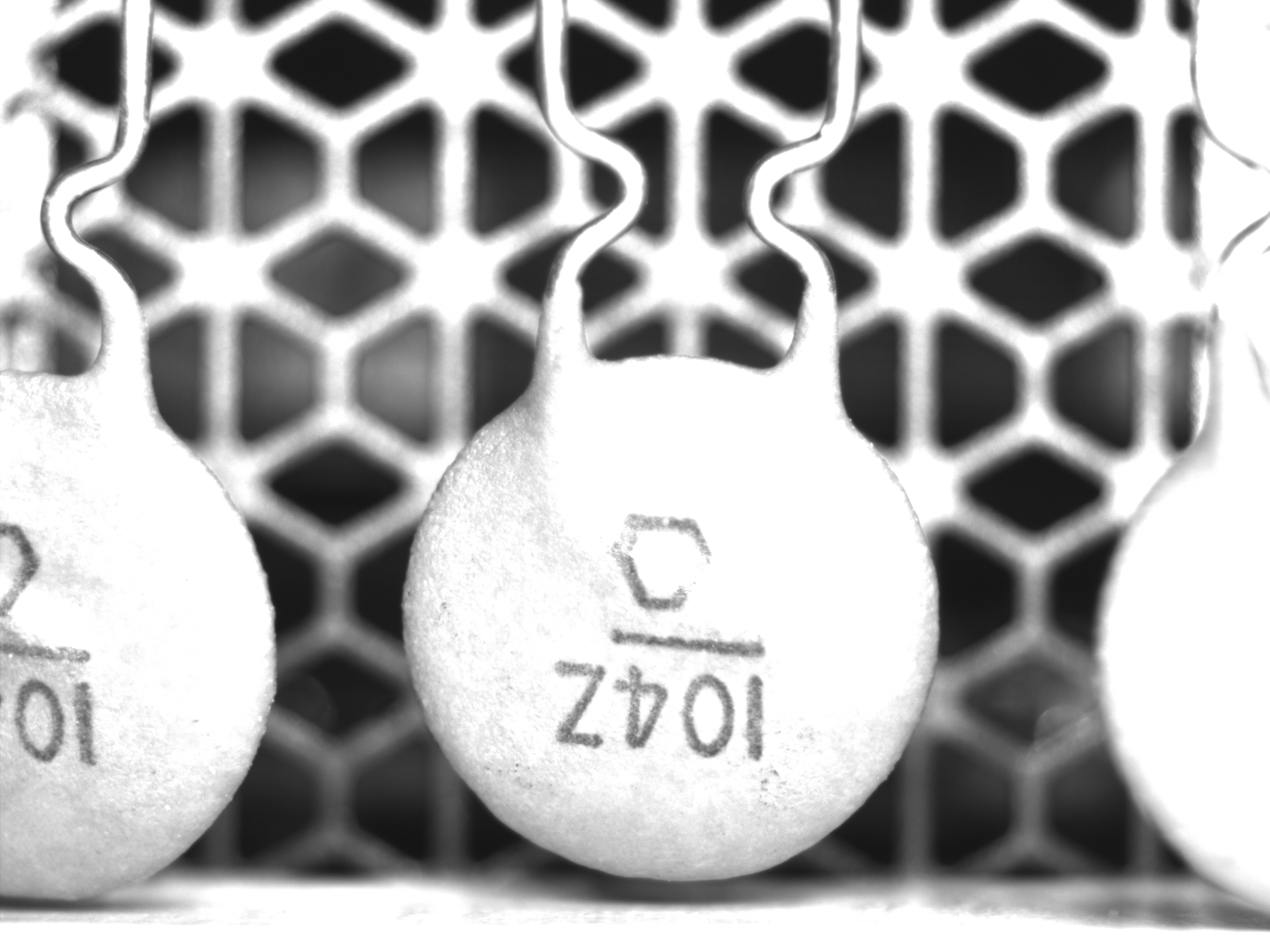
The test below captures images at 5 ms, 20 ms, and 50 ms.
|
1 2 3 4 5 6 7 8 9 10 11 12 13 14 15 16 17 18 19 20 21 22 23 |
[TestMethod()] public void SetExposureTest() { _baslerCameraSample.Connect(); // 5 ms _baslerCameraSample.SetExposure(5000); var img1 = _baslerCameraSample.SnapToBitmapSource(); BaslerCameraSample.SaveBitmap(img1, “Exposure_5ms.bmp”); Assert.IsTrue(Math.Abs(_baslerCameraSample.GetExposureTime() – 5000) < 100); // 20 ms _baslerCameraSample.SetExposure(20000); var img2 = _baslerCameraSample.SnapToBitmapSource(); BaslerCameraSample.SaveBitmap(img2, “Exposure_20ms.bmp”); Assert.IsTrue(Math.Abs(_baslerCameraSample.GetExposureTime() – 20000) < 100); // 50 ms _baslerCameraSample.SetExposure(50000); var img3 = _baslerCameraSample.SnapToBitmapSource(); BaslerCameraSample.SaveBitmap(img3, “Exposure_50ms.bmp”); Assert.IsTrue(Math.Abs(_baslerCameraSample.GetExposureTime() – 50000) < 100); } |
📊 Exposure Comparison
| 5 ms (darker) | 20 ms (balanced) | 50 ms (brighter) |
|---|---|---|
 |
 |
 |
🧭 Common Issues & Troubleshooting
| Issue | Cause / Solution |
|---|---|
| Exposure does not change | ExposureAuto is still On |
| Value outside valid range | Exposure too long or too short for the camera model |
| Image too dark/bright | Lighting or gain settings are insufficient |
| Exposure fluctuates | External lighting or auto exposure still enabled |
📝 Summary
- Set
ExposureAuto = Offto enable manual exposure control - Exposure time is specified in microseconds (μs)
- pylon SDK accesses all parameters through
Camera.Parameters[...], following GenICam SFNC
🔜 Coming Up Next
Exposure alone may not give enough brightness range depending on your lighting environment.
The next article will cover manual gain control using the pylon SDK.