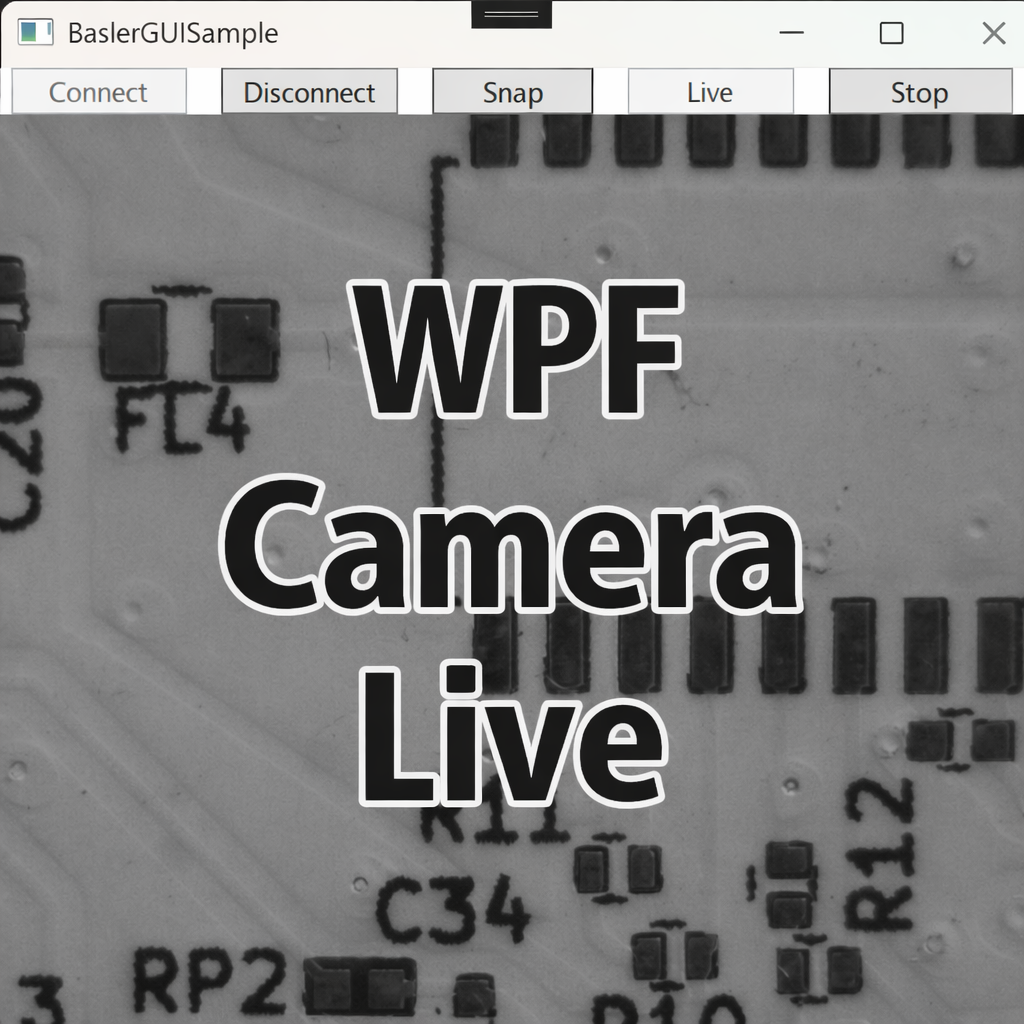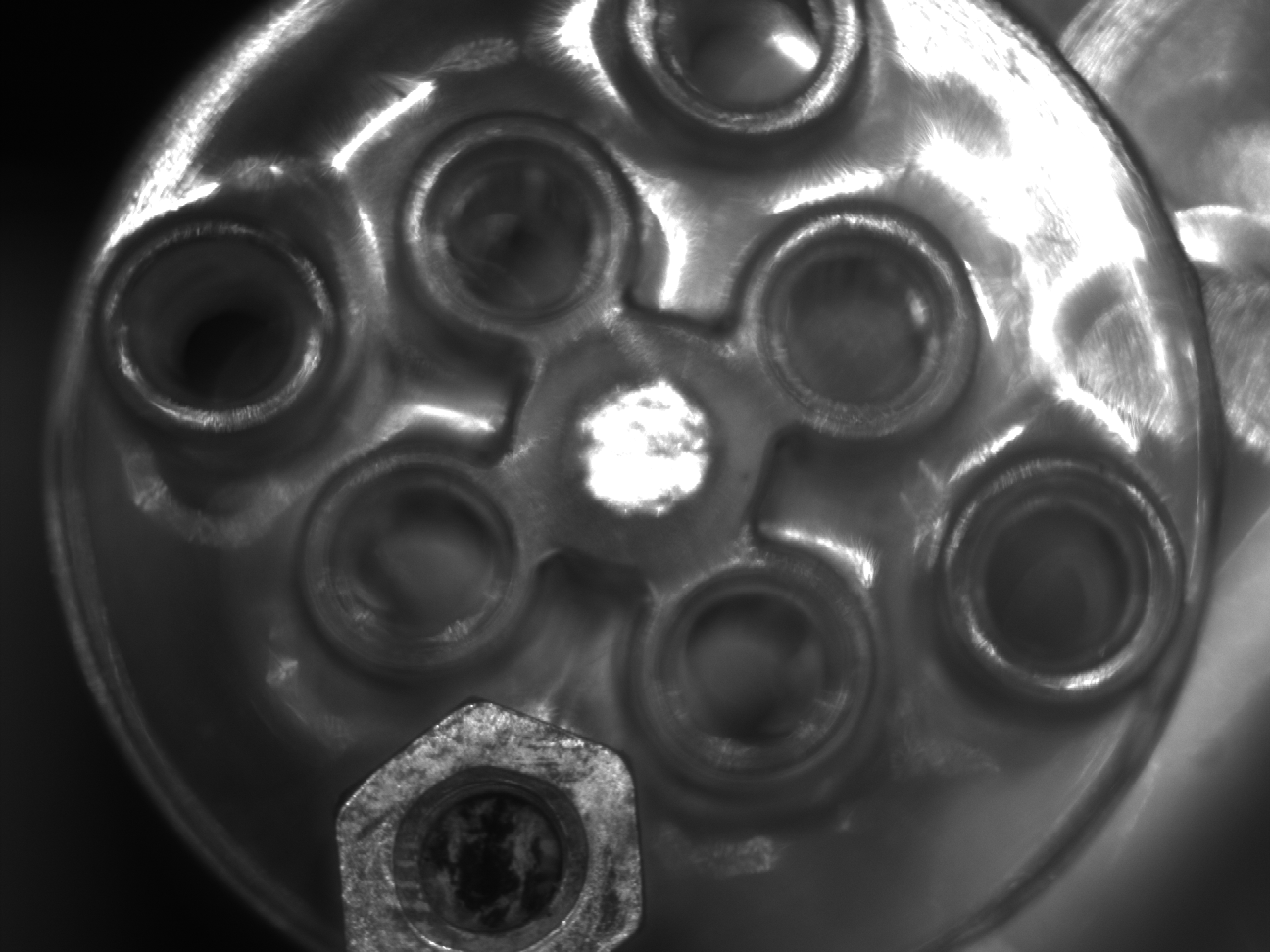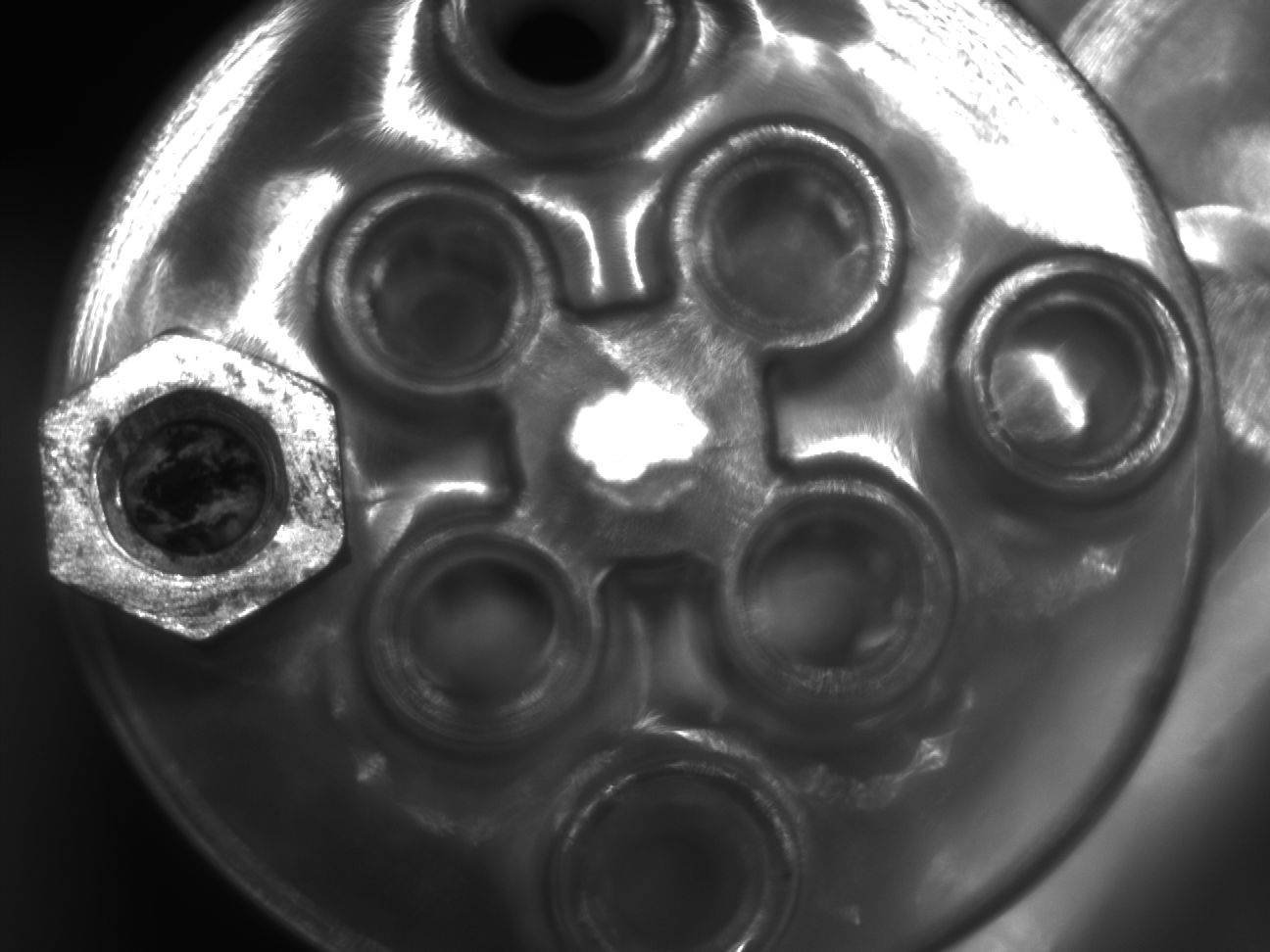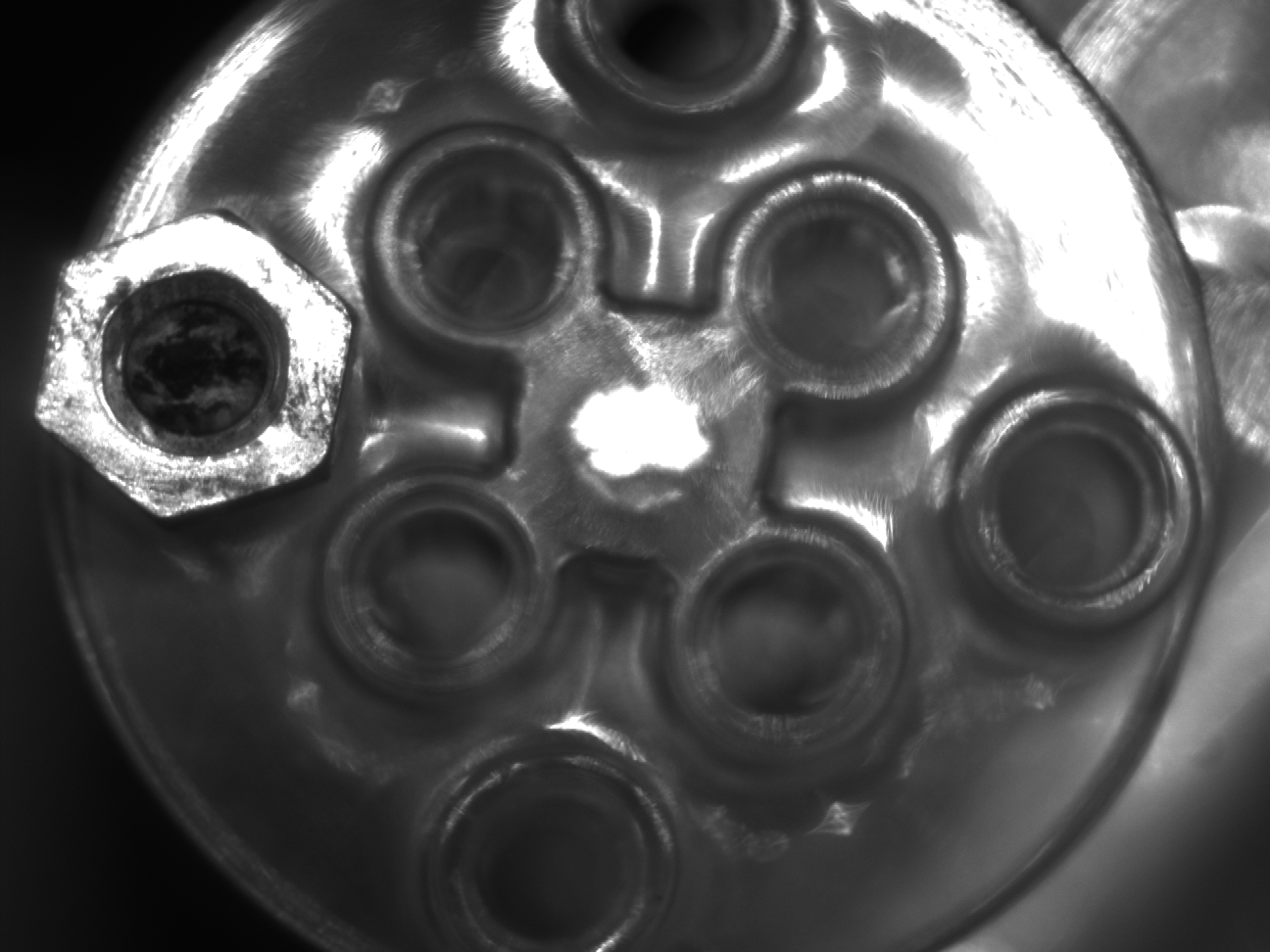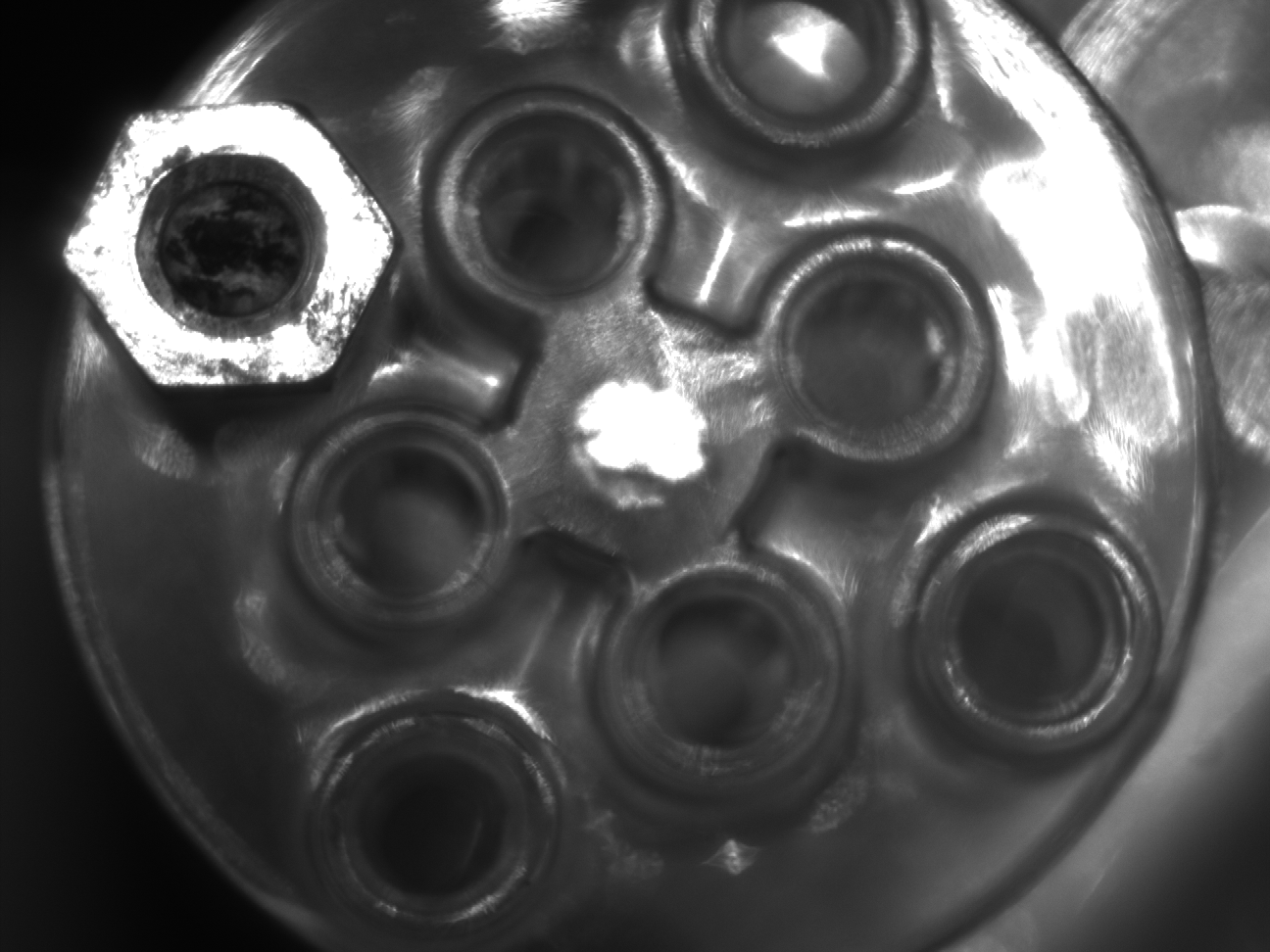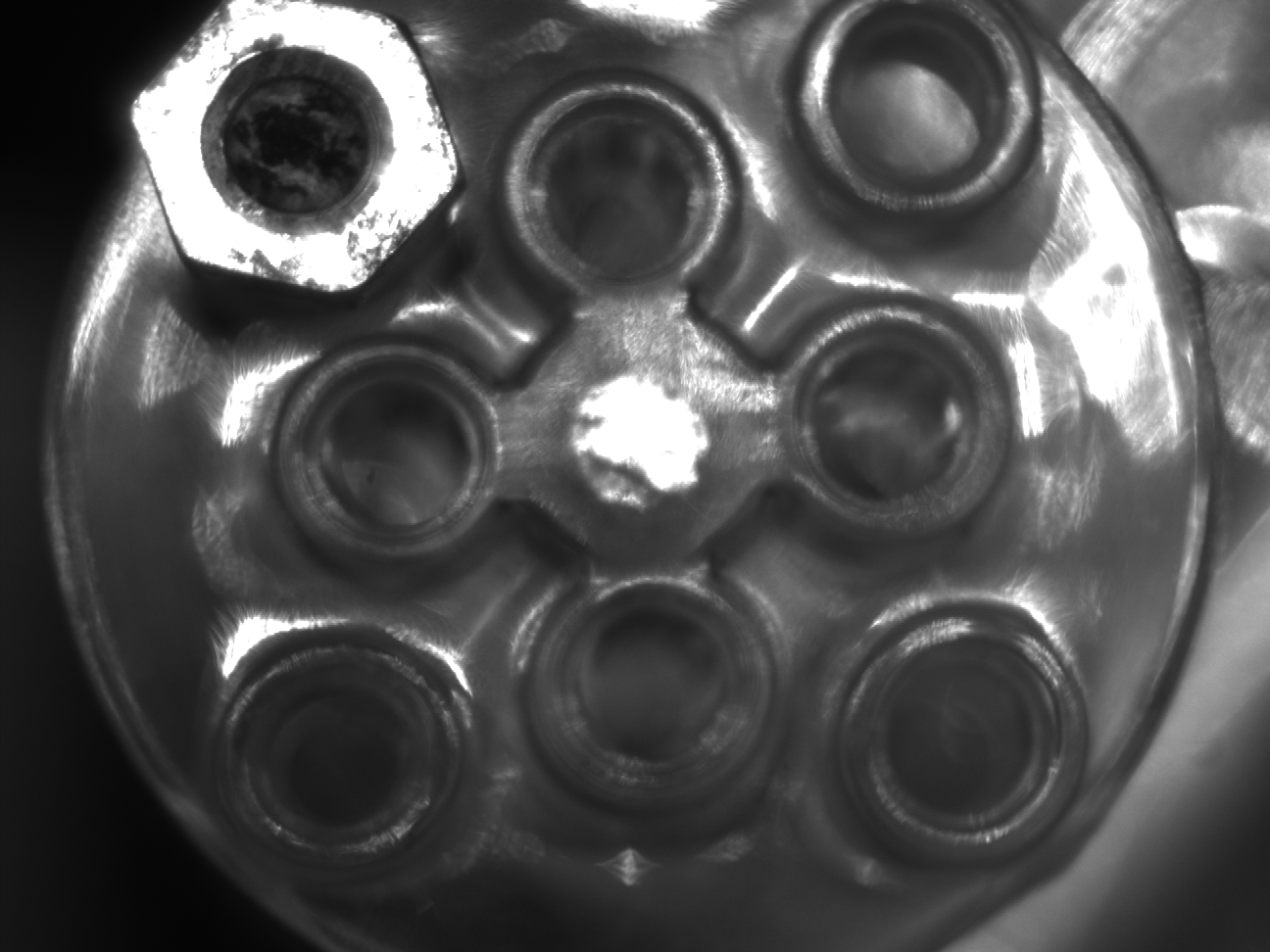
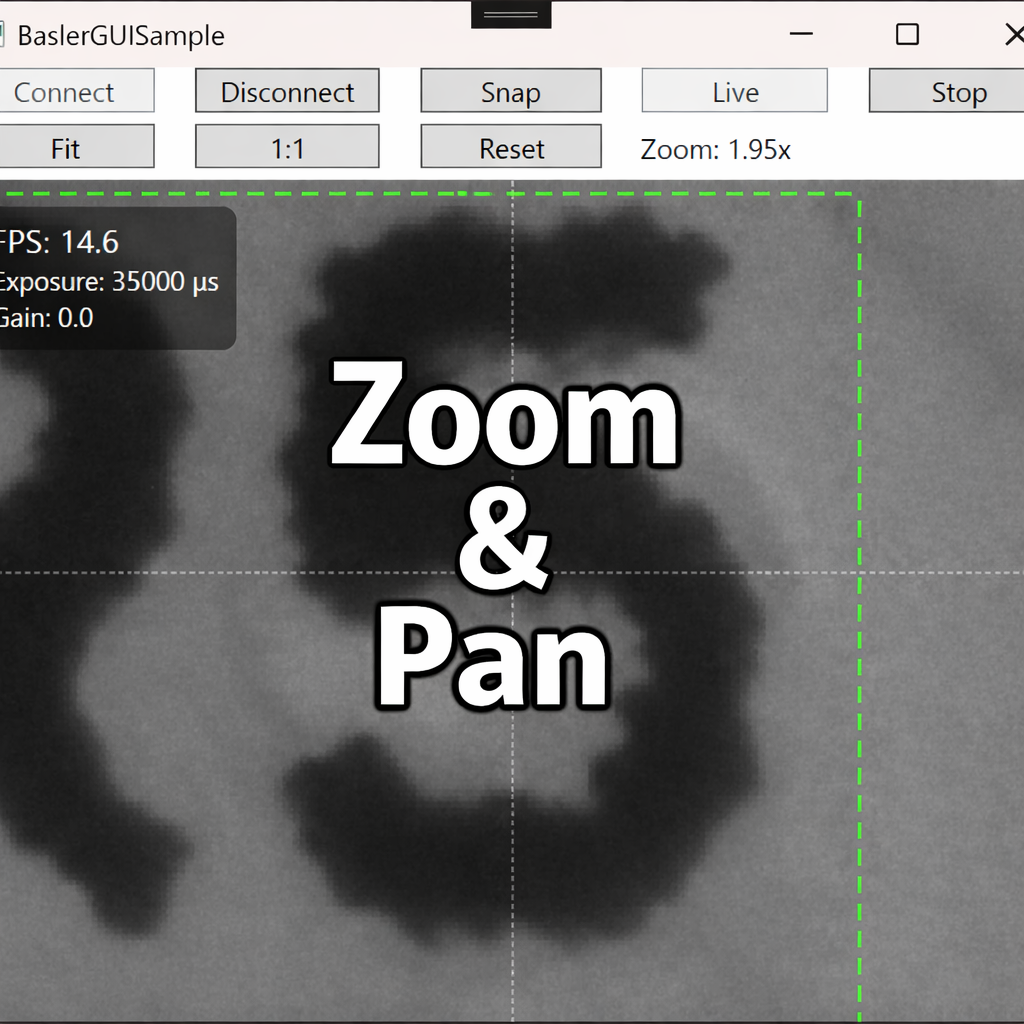
In the previous article, we built a minimal setup to overlay a HUD (FPS, exposure, gain) on top of live video. As a continuation, this article adds mouse-driven zoom/pan, an ROI rectangle that follows the image, and a crosshair fixed to the screen center.
We keep the same layer-separated design (Video = zoom/pan, HUD = fixed) to minimize blur and jitter.
Environment / Prerequisites
- Basler pylon Camera Software Suite (
Basler.Pylonreferenced) - .NET 8 / WPF (Windows desktop)
- You have completed the previous HUD live-view article:
Goals
- Mouse wheel zoom centered at the cursor (1.1× per step)
- Shift + drag (or middle button drag) to pan
- ROI rectangle scales/moves with the image (follows zoom/pan)
- Crosshair stays fixed in screen coordinates (HUD layer)
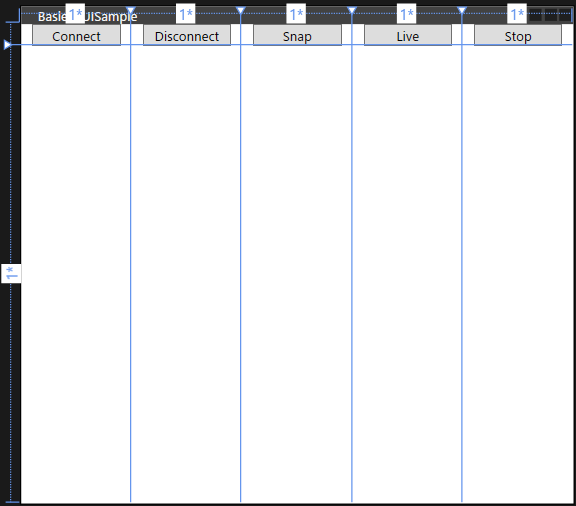
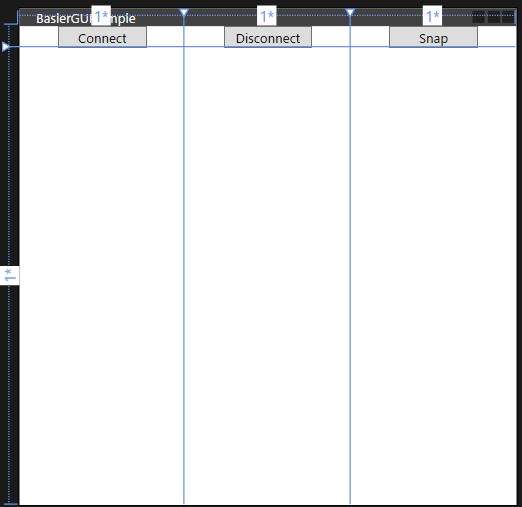
XAML: Two Layers + ROI Layer (Shared Transform)
Because the implementation has grown, some parts are omitted where appropriate.
|
1 2 3 4 5 6 7 8 9 10 11 12 13 14 15 16 17 18 19 20 21 22 23 24 25 26 27 28 29 30 31 32 33 34 35 36 37 38 39 40 41 42 43 44 45 46 47 48 49 50 51 52 53 54 55 56 57 58 59 60 61 62 63 64 65 66 67 68 69 70 71 72 73 74 75 76 77 78 79 80 81 82 83 84 85 86 87 88 89 90 91 92 93 94 95 96 97 98 99 100 |
<Window x:Class=“BaslerGUISample.MainWindow” xmlns=“http://schemas.microsoft.com/winfx/2006/xaml/presentation” xmlns:x=“http://schemas.microsoft.com/winfx/2006/xaml” xmlns:d=“http://schemas.microsoft.com/expression/blend/2008” xmlns:mc=“http://schemas.openxmlformats.org/markup-compatibility/2006” xmlns:local=“clr-namespace:BaslerGUISample” xmlns:models=“clr-namespace:BaslerGUISample.Models” mc:Ignorable=“d” Title=“BaslerGUISample” Height=“450” Width=“500” Closing=“Window_Closing”> <Window.Resources> <!— Shared transform for zoom/pan (used by both Image and ROI) —> <TransformGroup x:Key=“ContentTransform” Changed=“TransformGroup_Changed”> <ScaleTransform x:Name=“Zoom” ScaleX=“1” ScaleY=“1”/> <TranslateTransform x:Name=“Pan” X=“0” Y=“0”/> </TransformGroup> <models:HalfConverter x:Key=“Half”/> </Window.Resources> <Grid> <Grid.RowDefinitions> <RowDefinition Height=“Auto”/> <RowDefinition Height=“Auto”/> <RowDefinition Height=“*”/> </Grid.RowDefinitions> <Grid.ColumnDefinitions> <ColumnDefinition Width=“*”/> <ColumnDefinition Width=“*”/> <ColumnDefinition Width=“*”/> <ColumnDefinition Width=“*”/> <ColumnDefinition Width=“*”/> </Grid.ColumnDefinitions> <!— Row=0 is the same as before —> <!— Zoom controls —> <Grid Grid.Row=“1” Grid.Column=“0”> <Button Content=“Fit” Width=“80” Margin=“0,5” Click=“Fit_Click”/> </Grid> <Grid Grid.Row=“1” Grid.Column=“1”> <Button Content=“1:1” Width=“80” Margin=“0,5” Click=“Pixel1to1_Click”/> </Grid> <Grid Grid.Row=“1” Grid.Column=“2”> <Button Content=“Reset” Width=“80” Margin=“0,5” Click=“Reset_Click”/> </Grid> <Grid Grid.Row=“1” Grid.Column=“3”> <TextBlock Text=“{Binding ZoomText, RelativeSource={RelativeSource AncestorType=local:MainWindow}}” VerticalAlignment=“Center” Margin=“8,0,0,0”/> </Grid> <!— Display area —> <Grid Grid.Row=“2” Grid.Column=“0” Grid.ColumnSpan=“5” ClipToBounds=“True” UseLayoutRounding=“True” SnapsToDevicePixels=“True” TextOptions.TextFormattingMode=“Display” TextOptions.TextRenderingMode=“ClearType” PreviewMouseWheel=“Root_PreviewMouseWheel” MouseLeftButtonDown=“Root_MouseDown” MouseMove=“Root_MouseMove” MouseUp=“Root_MouseUp”> <!— Video layer (zoom/pan applied) —> <Canvas x:Name=“ImageLayer”> <Image x:Name=“CameraImage” Source=“{Binding CurrentFrame}” RenderOptions.BitmapScalingMode=“NearestNeighbor” Stretch=“Uniform” RenderTransform=“{StaticResource ContentTransform}”/> </Canvas> <!— ROI layer (shares transform to follow the image) —> <Canvas x:Name=“RoiLayer” IsHitTestVisible=“False” RenderTransform=“{StaticResource ContentTransform}”> <Rectangle x:Name=“RoiRect” Width=“270” Height=“200” Canvas.Left=“100” Canvas.Top=“130” Stroke=“Lime” StrokeThickness=“1” StrokeDashArray=“4,2” /> </Canvas> <!— HUD layer (screen–fixed, no zoom) —> <Grid x:Name=“HudLayer” IsHitTestVisible=“False”> <!— Top–left HUD box is the same as previous article —> <!— Crosshair fixed at screen center —> <Line X1=“0” Y1=“{Binding ActualHeight, ElementName=HudLayer, Converter={StaticResource Half}}” X2=“{Binding ActualWidth, ElementName=HudLayer}” Y2=“{Binding ActualHeight, ElementName=HudLayer, Converter={StaticResource Half}}” Stroke=“White” StrokeThickness=“1” StrokeDashArray=“2,2” Opacity=“0.6”/> <Line X1=“{Binding ActualWidth, ElementName=HudLayer, Converter={StaticResource Half}}” Y1=“0” X2=“{Binding ActualWidth, ElementName=HudLayer, Converter={StaticResource Half}}” Y2=“{Binding ActualHeight, ElementName=HudLayer}” Stroke=“White” StrokeThickness=“1” StrokeDashArray=“2,2” Opacity=“0.6”/> <!— Add more HUD elements here —> </Grid> </Grid> </Grid> </Window> |
HalfConverter (For Center Crosshair)
This converter makes it easy to draw lines centered in the HUD layer.
|
1 2 3 4 5 6 7 8 9 10 11 12 13 14 15 |
using System; using System.Globalization; using System.Windows.Data; namespace BaslerGUISample.Models { public class HalfConverter : IValueConverter { public object Convert(object value, Type targetType, object parameter, CultureInfo culture) => value is double d ? d / 2.0 : 0.0; public object ConvertBack(object value, Type targetType, object parameter, CultureInfo culture) => Binding.DoNothing; } } |
Code-Behind: Zoom / Pan
In this article, zoom and pan are implemented purely in code-behind. You can refactor into ViewModel/Model later if needed.
|
1 2 3 4 5 6 7 8 9 10 11 12 13 14 15 16 17 18 19 20 21 22 23 24 25 26 27 28 29 30 31 32 33 34 35 36 37 38 39 40 41 42 43 44 45 46 47 48 49 50 51 52 53 54 55 56 57 58 59 60 61 62 63 64 65 66 67 68 69 70 71 72 73 74 75 76 77 78 79 80 81 82 83 84 85 86 87 88 89 90 91 92 93 94 95 96 97 98 99 100 101 102 103 104 105 106 107 108 109 110 111 112 113 114 115 116 117 118 119 120 121 122 123 124 125 126 127 128 129 130 131 132 133 134 135 136 137 138 139 140 141 142 143 |
using System.Windows; using System.Windows.Input; using System.Windows.Media; using BaslerGUISample.ViewModels; namespace BaslerGUISample { /// <summary> /// Interaction logic for MainWindow.xaml /// </summary> public partial class MainWindow : Window { private readonly MainViewModel _viewModel; private TransformGroup? _contentTransform; private ScaleTransform? _scale; private TranslateTransform? _trans; private bool _panning; private Point _panStart; public MainWindow() { InitializeComponent(); _viewModel = new MainViewModel(); DataContext = _viewModel; _contentTransform = (TransformGroup)Resources[“ContentTransform”]; _scale = (ScaleTransform)_contentTransform.Children[0]; _trans = (TranslateTransform)_contentTransform.Children[1]; UpdateZoomText(); } public string ZoomText { get => (string)GetValue(ZoomTextProperty); set => SetValue(ZoomTextProperty, value); } public static readonly DependencyProperty ZoomTextProperty = DependencyProperty.Register(nameof(ZoomText), typeof(string), typeof(MainWindow), new PropertyMetadata(“Zoom: 1.00x”)); /// <summary> /// Disconnect the camera before the window closes. /// </summary> private void Window_Closing(object sender, System.ComponentModel.CancelEventArgs e) { if (_viewModel.IsGrabbing) { _viewModel.Stop(); } _viewModel.Disconnect(); } private void Root_PreviewMouseWheel(object sender, MouseWheelEventArgs e) { const double step = 1.1; double factor = e.Delta > 0 ? step : 1.0 / step; var viewPt = e.GetPosition(ImageLayer); var contentPt = ToContent(viewPt); double newScaleX = _scale!.ScaleX * factor; double newScaleY = _scale!.ScaleY * factor; newScaleX = Math.Clamp(newScaleX, 0.1, 20.0); newScaleY = Math.Clamp(newScaleY, 0.1, 20.0); _scale.ScaleX = newScaleX; _scale.ScaleY = newScaleY; var post = _contentTransform!.Transform(contentPt); _trans!.X += viewPt.X – post.X; _trans!.Y += viewPt.Y – post.Y; } private void Root_MouseDown(object sender, MouseButtonEventArgs e) { if (e.MiddleButton == MouseButtonState.Pressed || (e.LeftButton == MouseButtonState.Pressed && (Keyboard.IsKeyDown(Key.LeftShift) || Keyboard.IsKeyDown(Key.RightShift)))) { _panning = true; _panStart = e.GetPosition(ImageLayer); Mouse.Capture(ImageLayer); } } private void Root_MouseMove(object sender, MouseEventArgs e) { if (!_panning) return; var now = e.GetPosition(ImageLayer); var delta = now – _panStart; _panStart = now; _trans!.X += delta.X; _trans!.Y += delta.Y; } private void Root_MouseUp(object sender, MouseButtonEventArgs e) { _panning = false; Mouse.Capture(null); } private void Reset_Click(object sender, RoutedEventArgs e) { _scale!.ScaleX = _scale.ScaleY = 1.0; _trans!.X = _trans.Y = 0.0; } private void Pixel1to1_Click(object sender, RoutedEventArgs e) { _scale!.ScaleX = _scale.ScaleY = 1.0; } private void Fit_Click(object sender, RoutedEventArgs e) { if (_viewModel.CurrentFrame is null) return; var w = ImageLayer.ActualWidth; var h = ImageLayer.ActualHeight; if (w <= 0 || h <= 0) return; double srcW = _viewModel.CurrentFrame.PixelWidth, srcH = _viewModel.CurrentFrame.PixelHeight; double s = Math.Min(w / srcW, h / srcH); _scale!.ScaleX = _scale.ScaleY = s; _trans!.X = (w – srcW * s) * 0.5; _trans!.Y = (h – srcH * s) * 0.5; } private void UpdateZoomText() { ZoomText = $“Zoom: {_scale?.ScaleX:0.00}x”; } private Point ToContent(Point viewPt) { var inv = _contentTransform!.Inverse; return inv.Transform(viewPt); } private void TransformGroup_Changed(object sender, EventArgs e) { UpdateZoomText(); } } } |
ROI Handling and Applying It in Real Apps
In this sample, we assign the same TransformGroup to both the Image and the RoiLayer.
- Because
RoiLayershares the transform, it naturally follows zoom/pan. - In real applications, you typically bind
Canvas.Left/Top/Width/HeightofRoiRectto a ViewModel, then apply those values to camera ROI parameters. - When applying ROI to the camera, remember GenICam constraints such as width/height increments.
Meanwhile, HUD elements (crosshair, texts) remain transform-free and screen-fixed, preventing blur and keeping interaction intuitive.
Example Screens
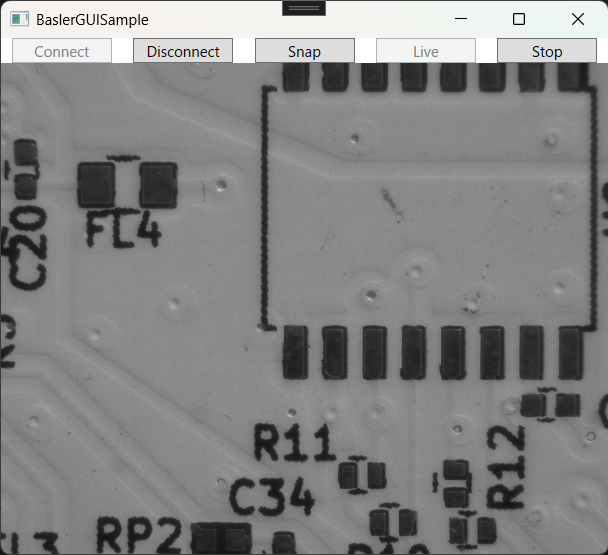
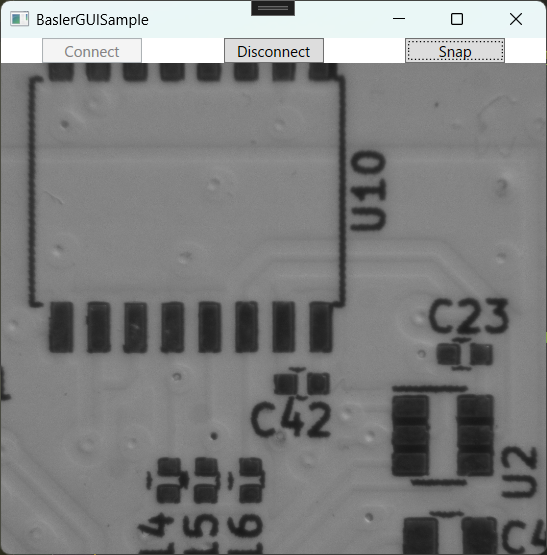
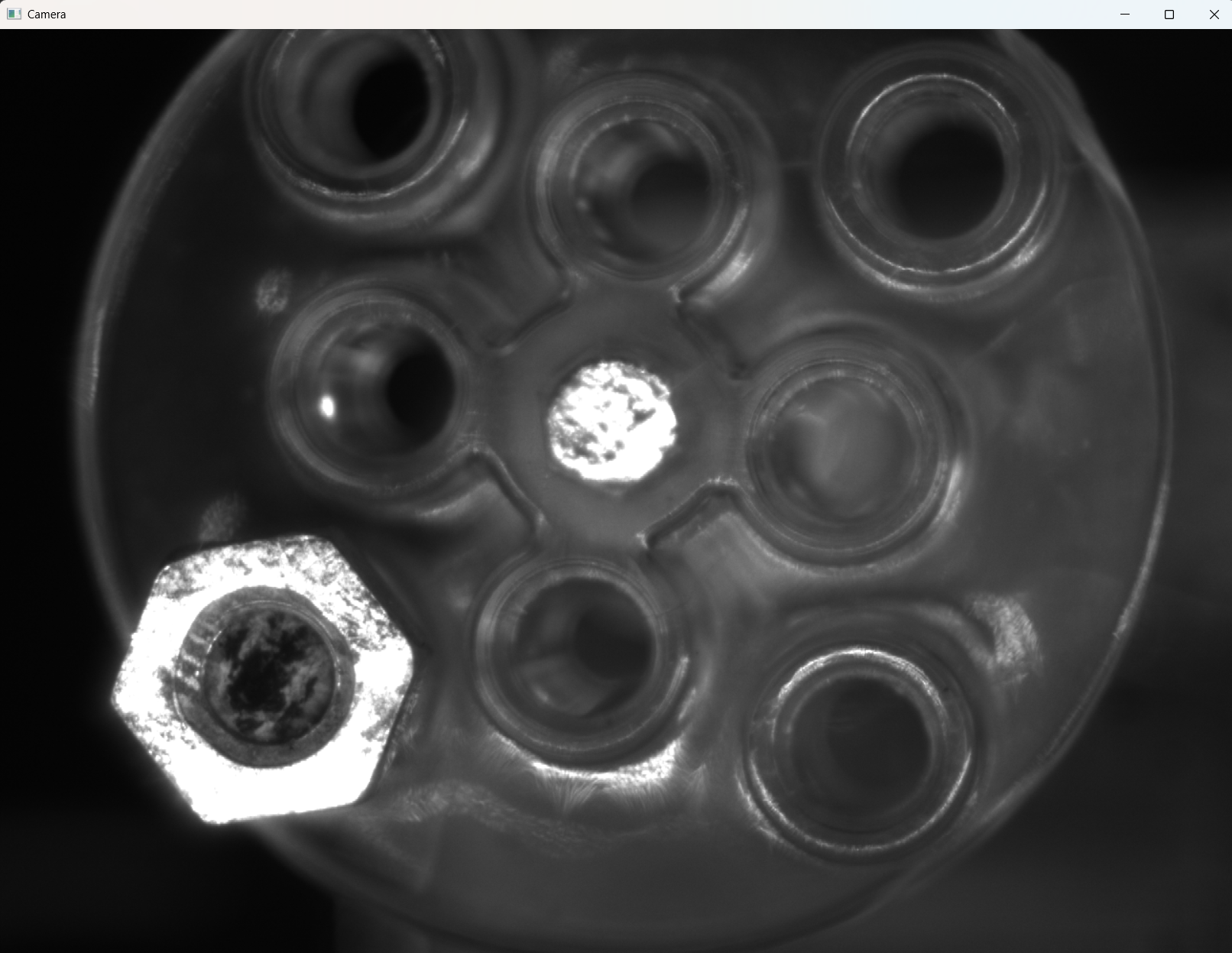
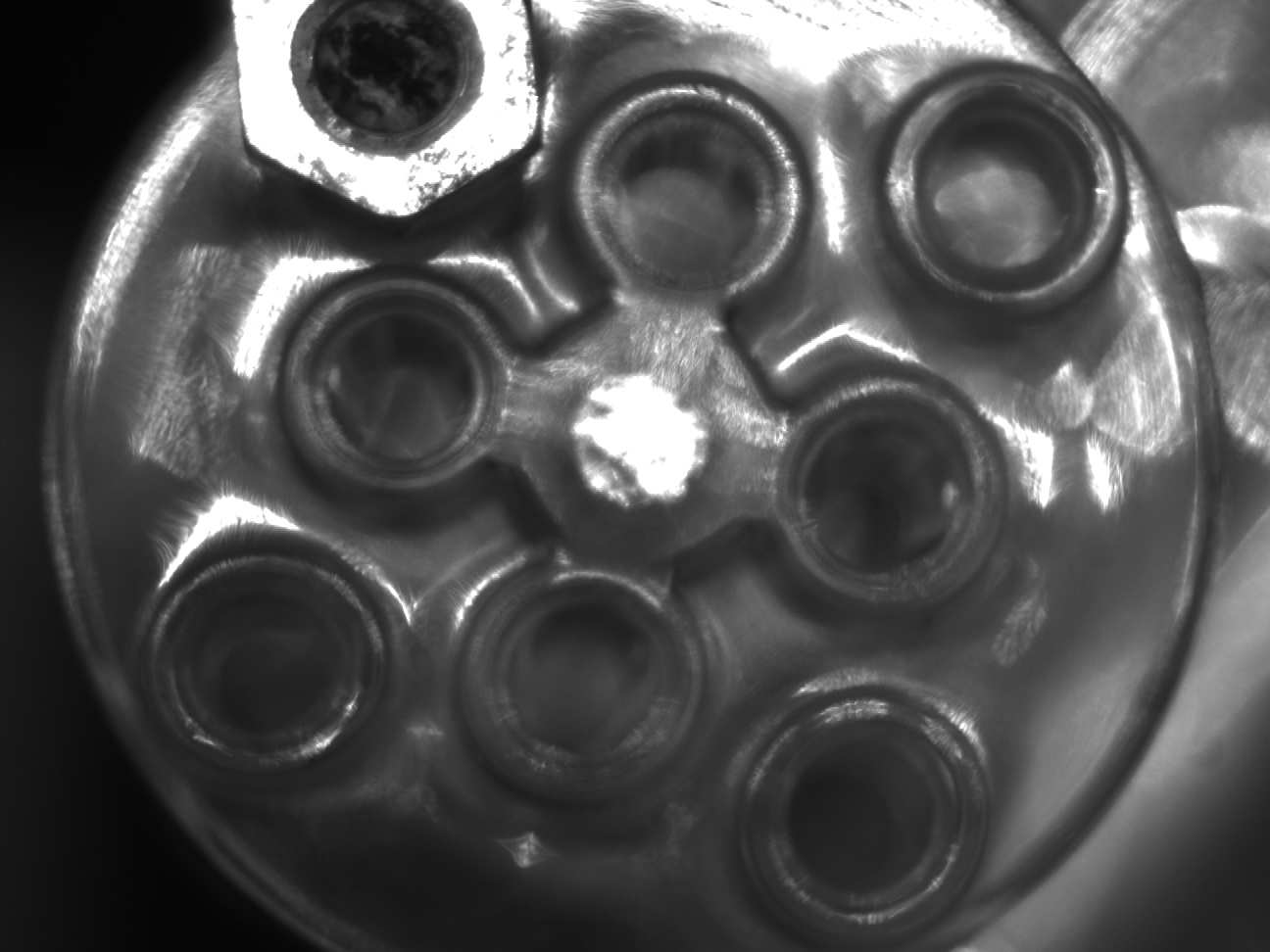
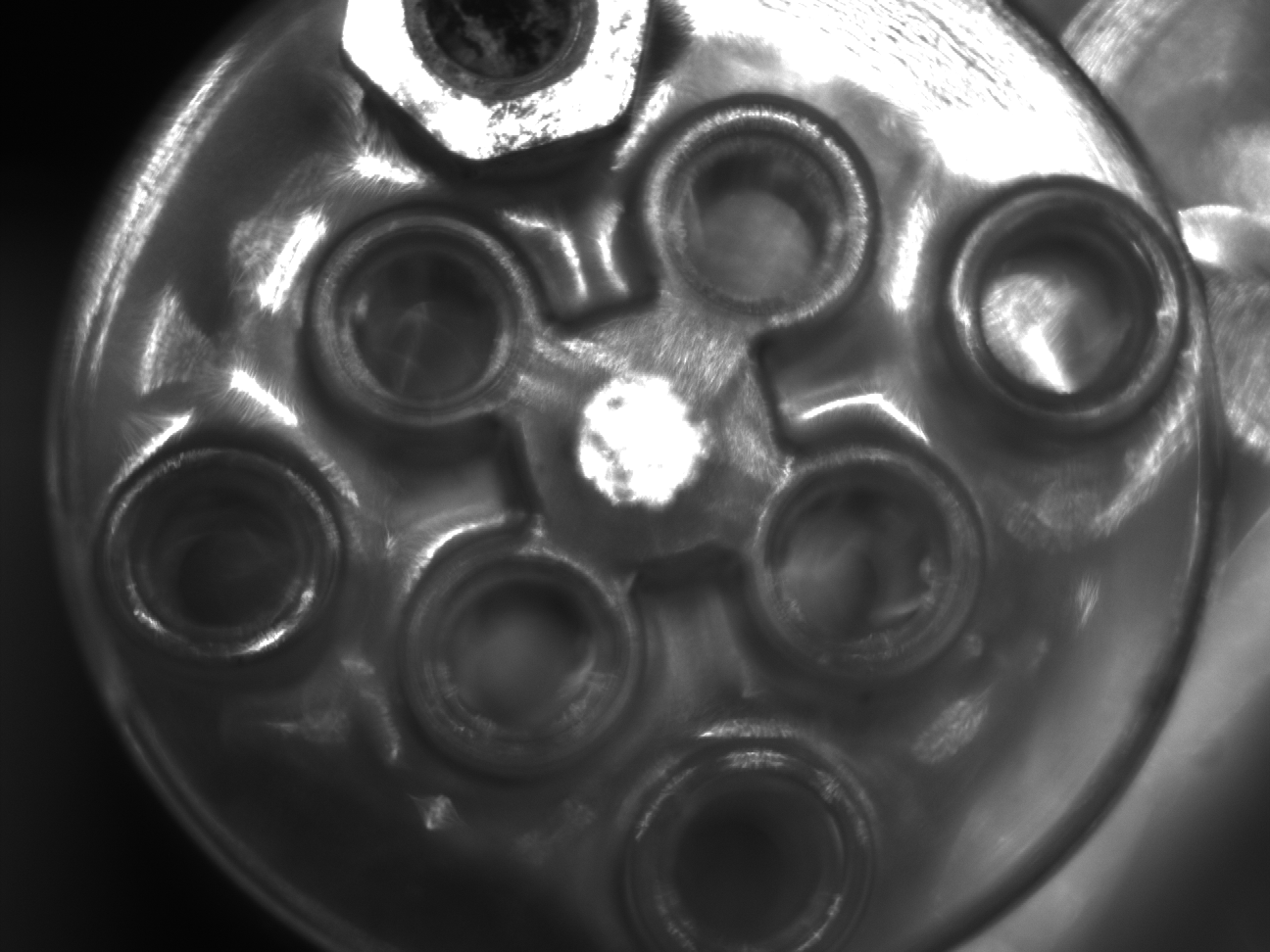
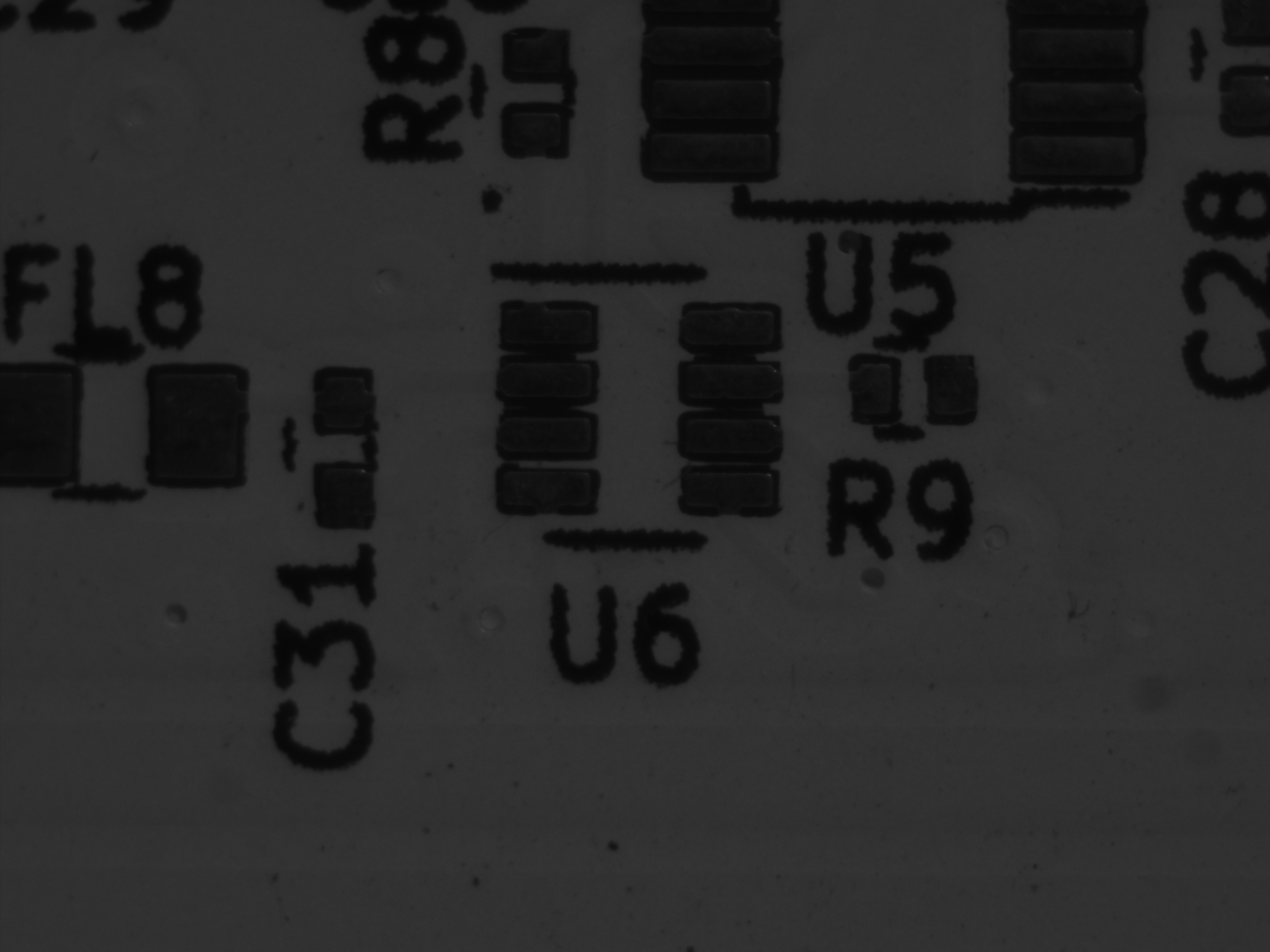
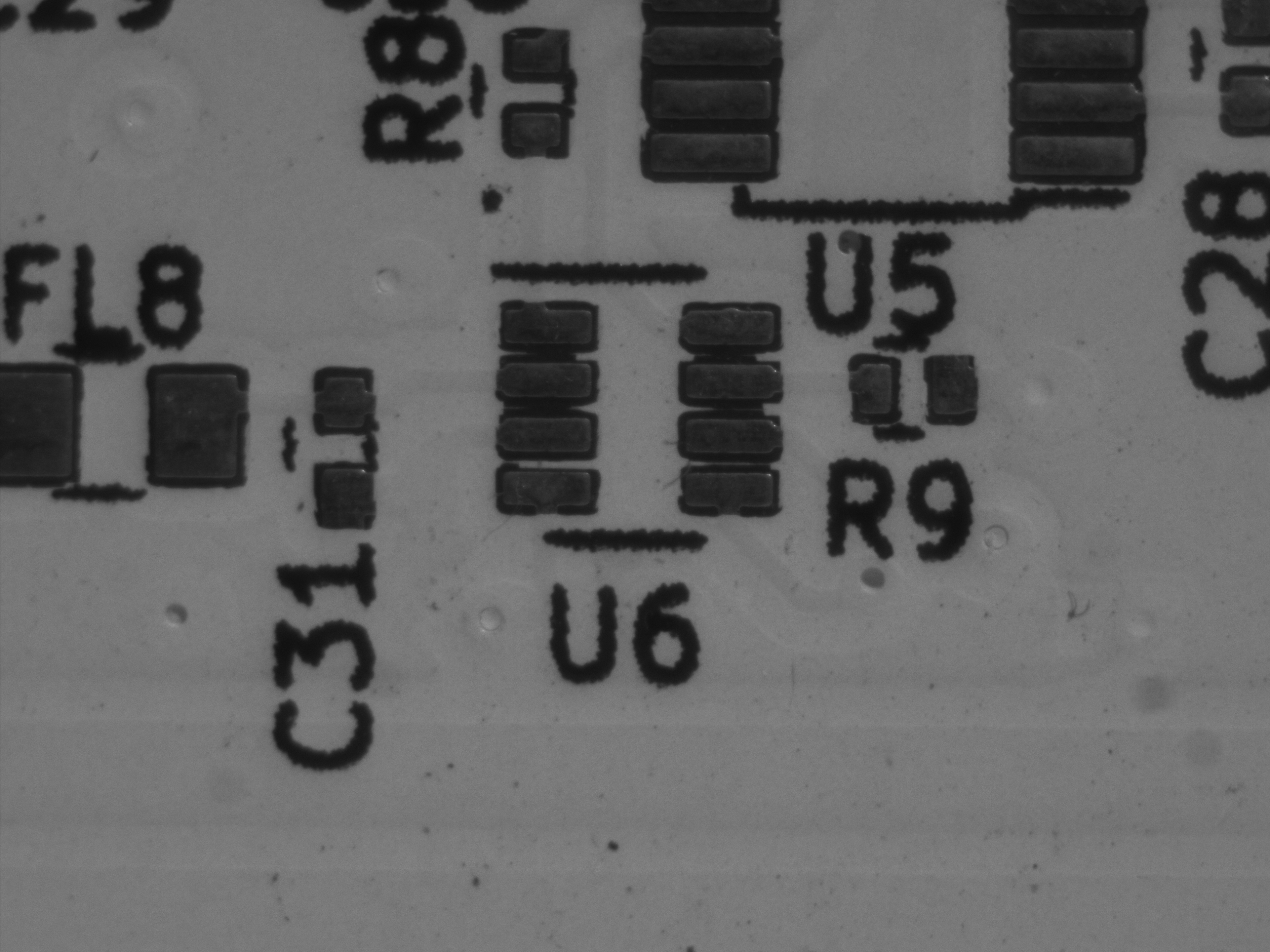
The UI looks like this:
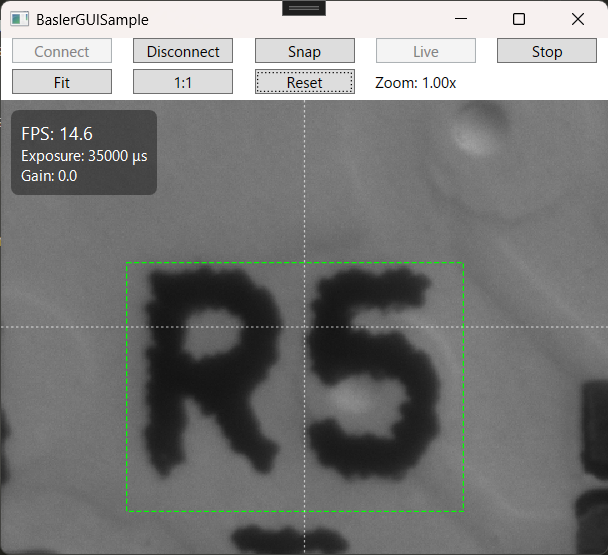
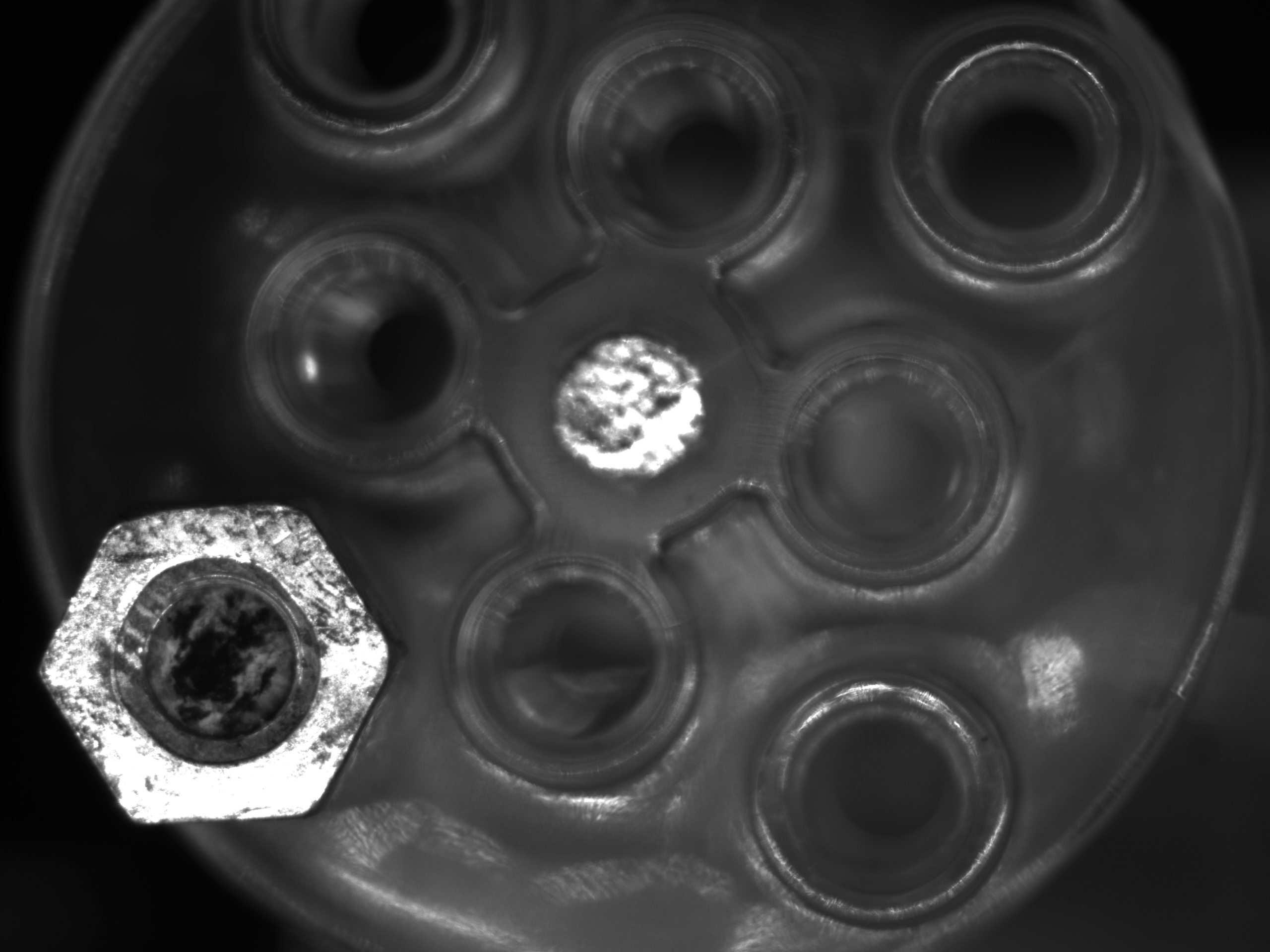
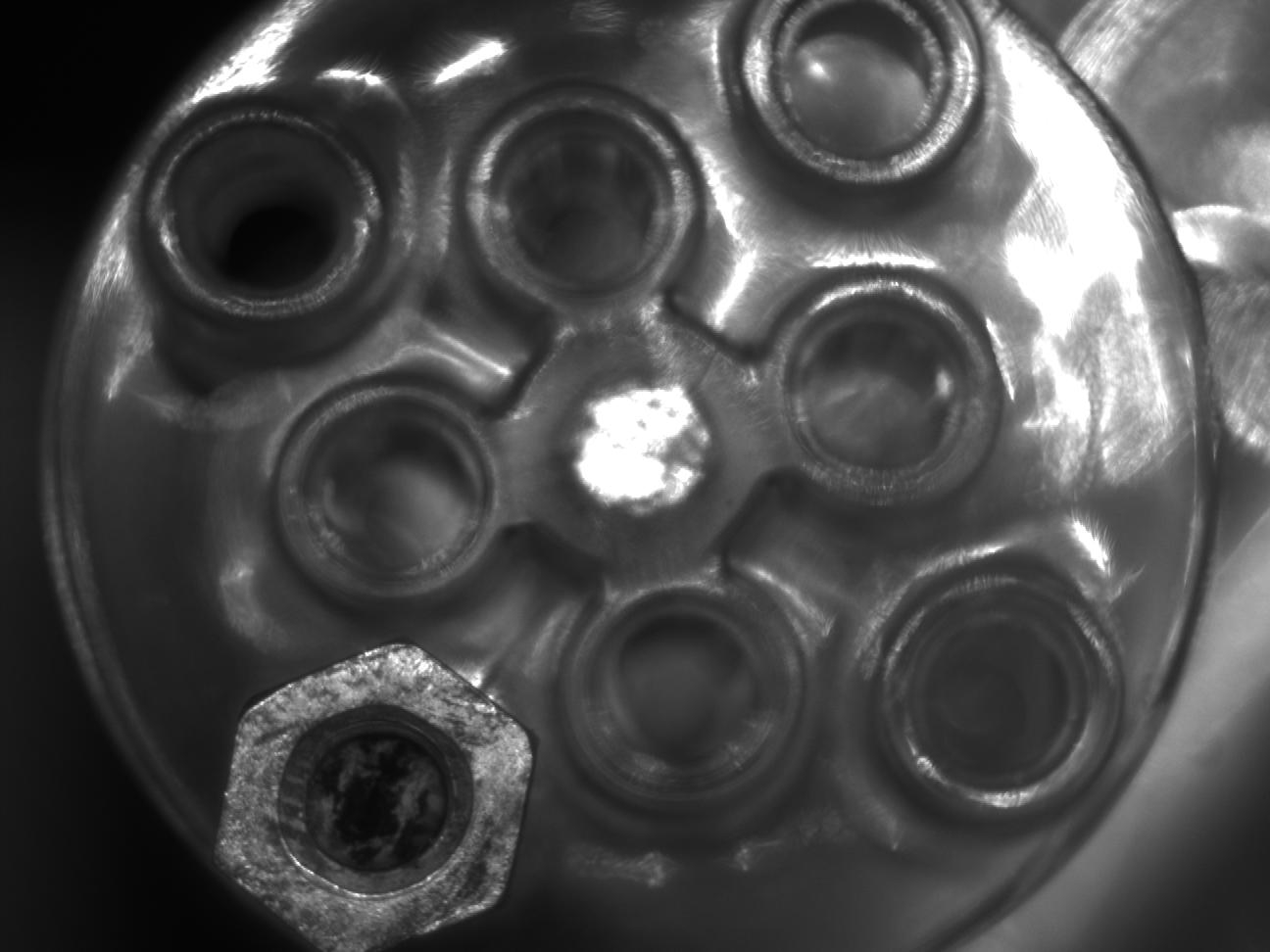
Pan the live view by dragging while holding Shift. The ROI follows; the crosshair stays fixed.
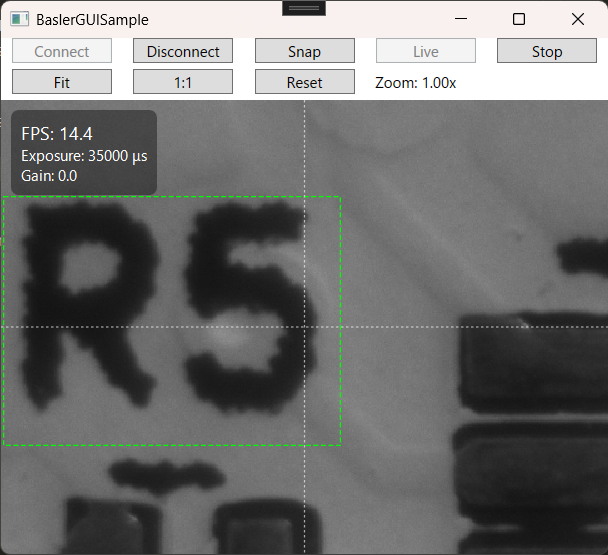
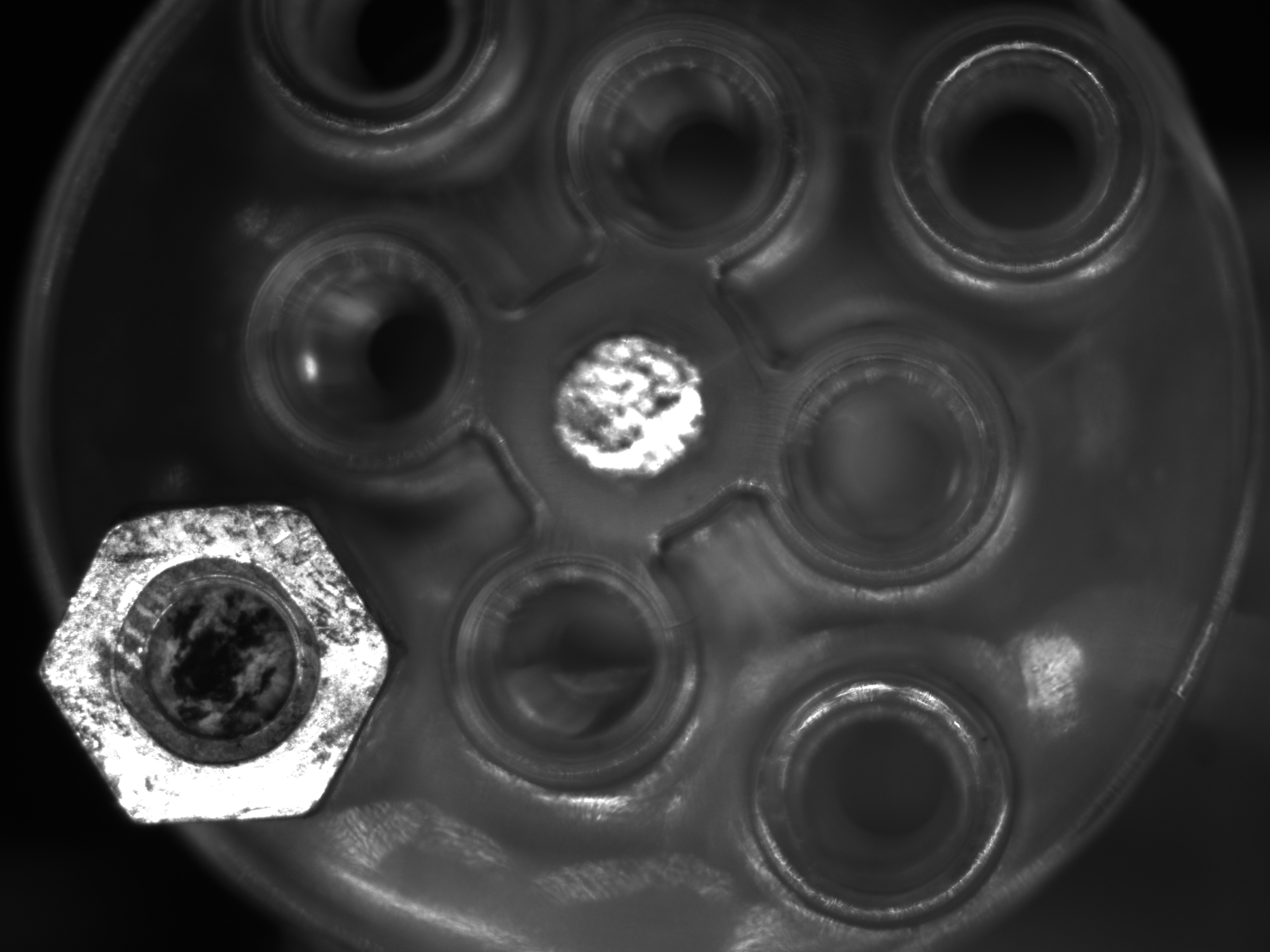
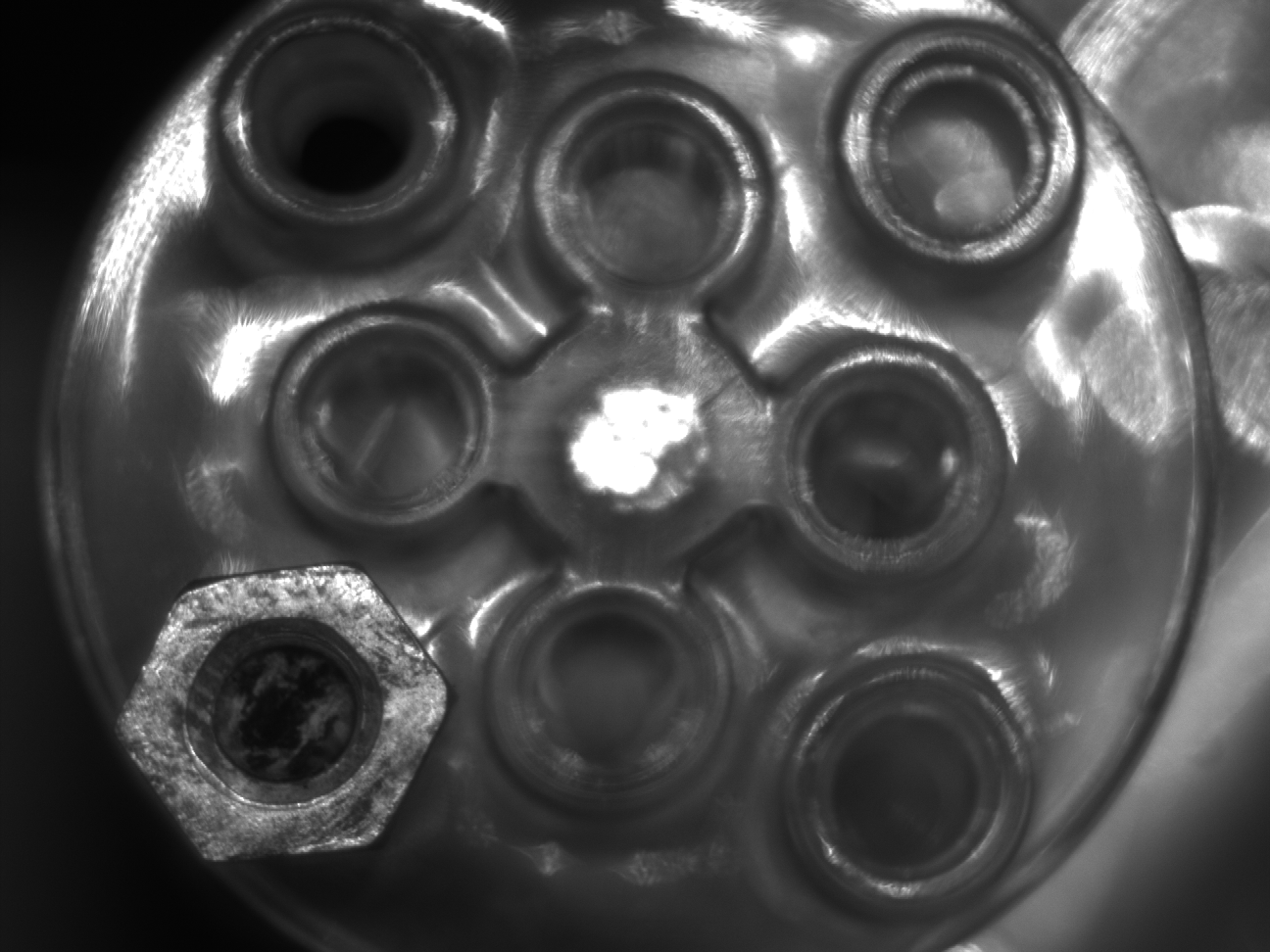
Zoom with the mouse wheel. The zoom ratio in the upper area updates as well.

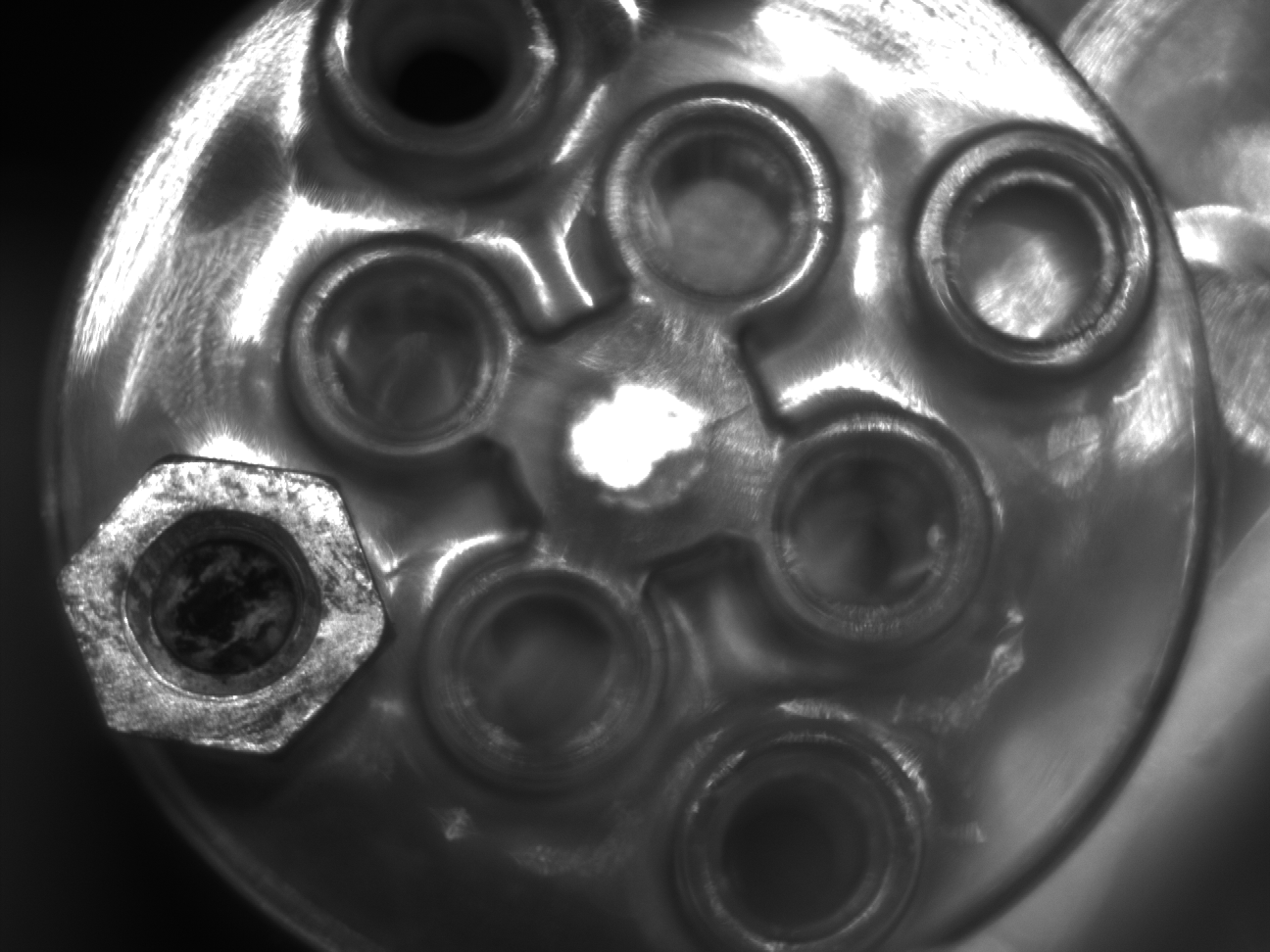
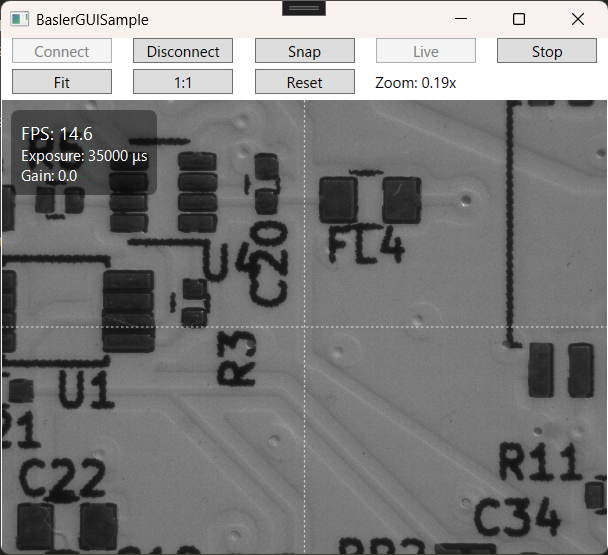
Use Fit to fit the image to the window. 1:1 sets the zoom to 1.0, and Reset returns zoom to 1.0 and pan offset to 0.
Summary
- Video + ROI share the same transform; HUD stays fixed (layered design)
- Mouse interaction provides cursor-centered zoom and intuitive pan
- ROI follows the image while the crosshair remains screen-fixed